Imagine you have to create a whole lot of measures in Power BI that are similar.
One free way to do this is, is by using C# scripts in Tabular Editor 2.0.
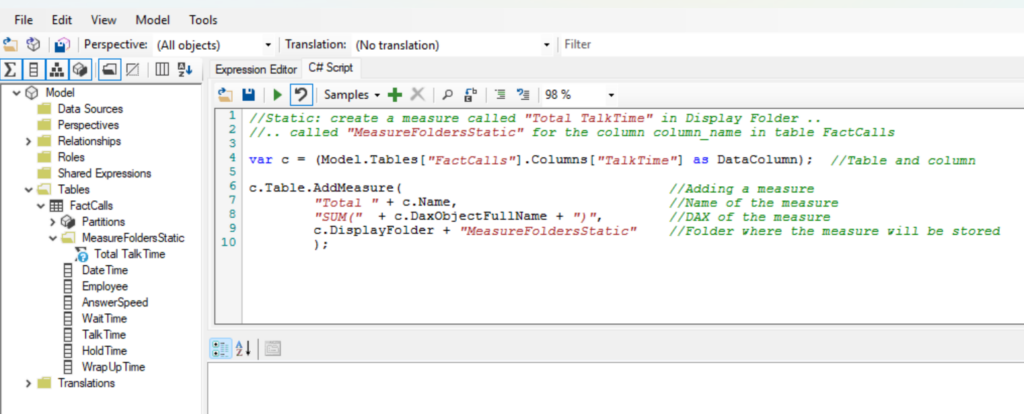
Below is an example of a “static” way to do this. You simply make the necessary adjustments like changing the table name and a measure will be added according to the logic of the C# script below. However, what if you would like to make this script a little more dynamic?
Static:
//Static: create a measure called "Total TalkTime" in Display Folder ..
//.. called "MeasureFoldersStatic" for the column column_name in table FactCalls

var c = (Model.Tables["FactCalls"].Columns["TalkTime"] as DataColumn);  //Table and column

c.Table.AddMeasure(                                 //Adding a measure
        "Total " + c.Name,                          //Name of the measure
        "SUM("  + c.DaxObjectFullName + ")",        //DAX of the measure
        c.DisplayFolder + "MeasureFoldersStatic"    //Folder where the measure will be stored
        );
The above example works well for a single measure, what if you need something more dynamic? Let’s look at a script that can handle multiple columns.
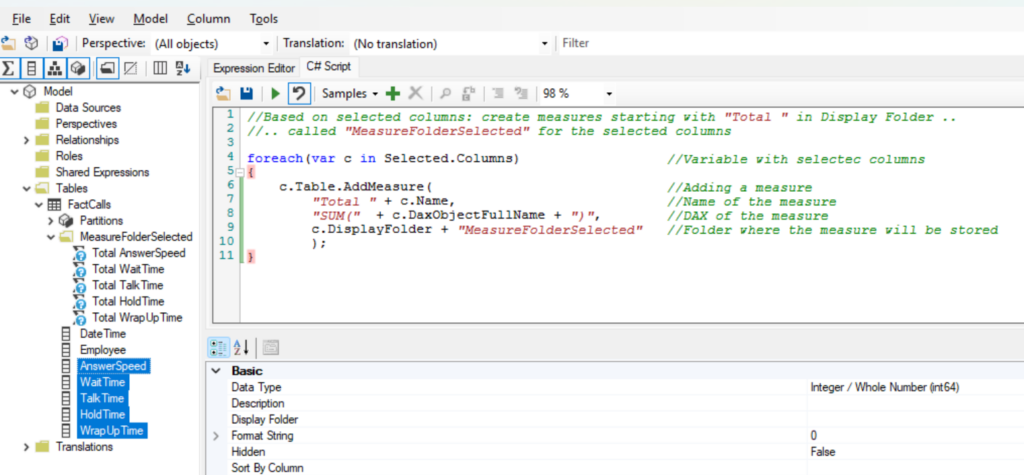
Then you could try the script below. This script will create a SUM of every column you have selected. Very interesting stuff.
Based on which columns you select:
//Based on selected columns: create measures starting with "Total " in Display Folder ..
//.. called "MeasureFolderSelected" for the selected columns

foreach(var c in Selected.Columns)                  //Variable with selectec columns
{
    c.Table.AddMeasure(                             //Adding a measure
        "Total " + c.Name,                          //Name of the measure
        "SUM("  + c.DaxObjectFullName + ")",        //DAX of the measure
        c.DisplayFolder + "MeasureFolderSelected"   //Folder where the measure will be stored
        );
}
Inspiration source: https://www.youtube.com/watch?v=EHs5r3XCkO8